Plug in HDMI and power. Your iPhone walks the screen onto shop Wi‑Fi and authorizes it with a short code. Your priced menu is on the wall — no keyboard, no IT visit.
Lumina Signage · product line
Menu boards, artwork,
and promos on any TV.
A small player plugs into any HDMI TV and shows the board you designed. Two steps on an iPhone to put one up. Prices can follow the same catalog as LuminaPOS — or the screens can run entirely on their own.
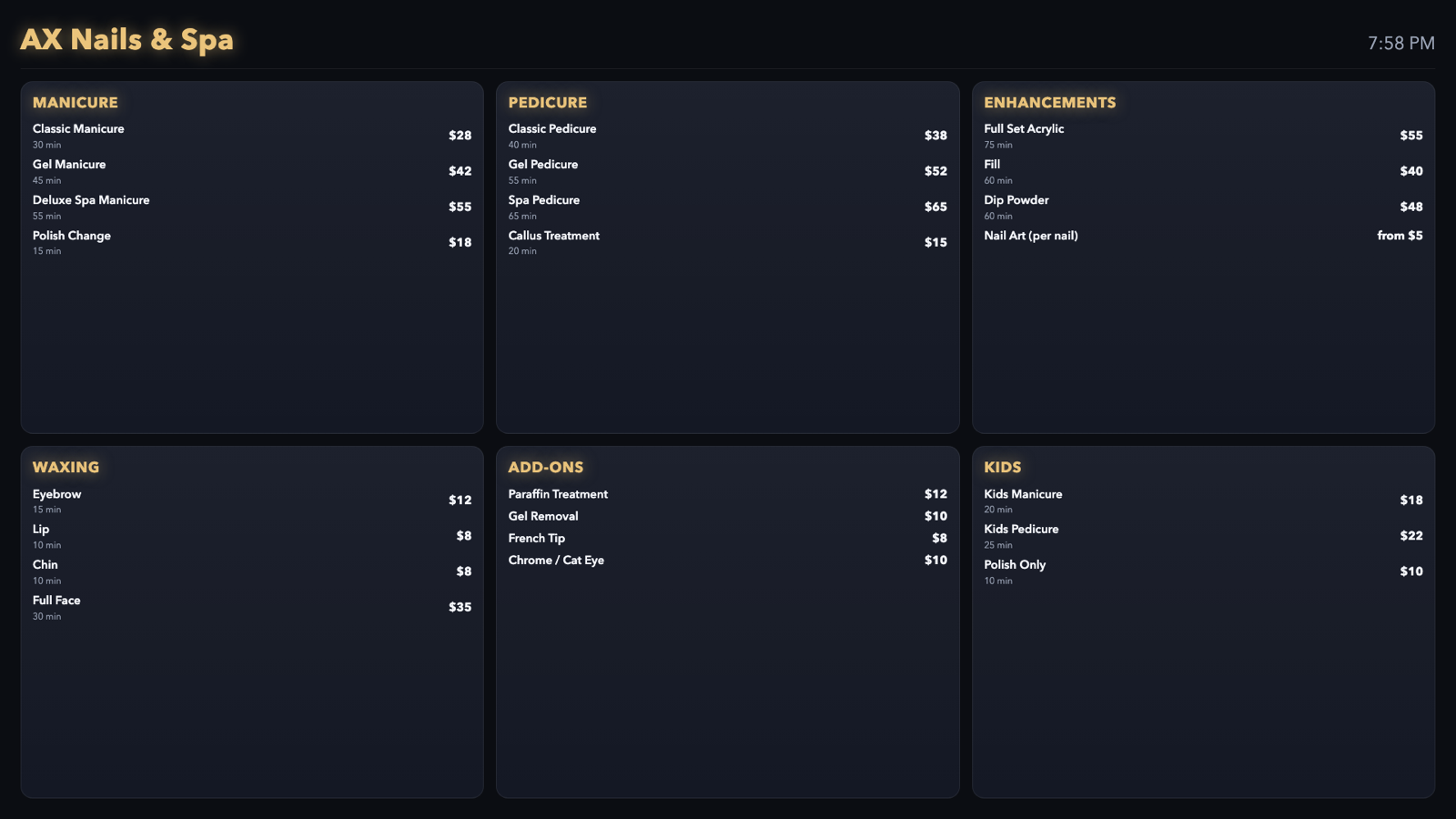
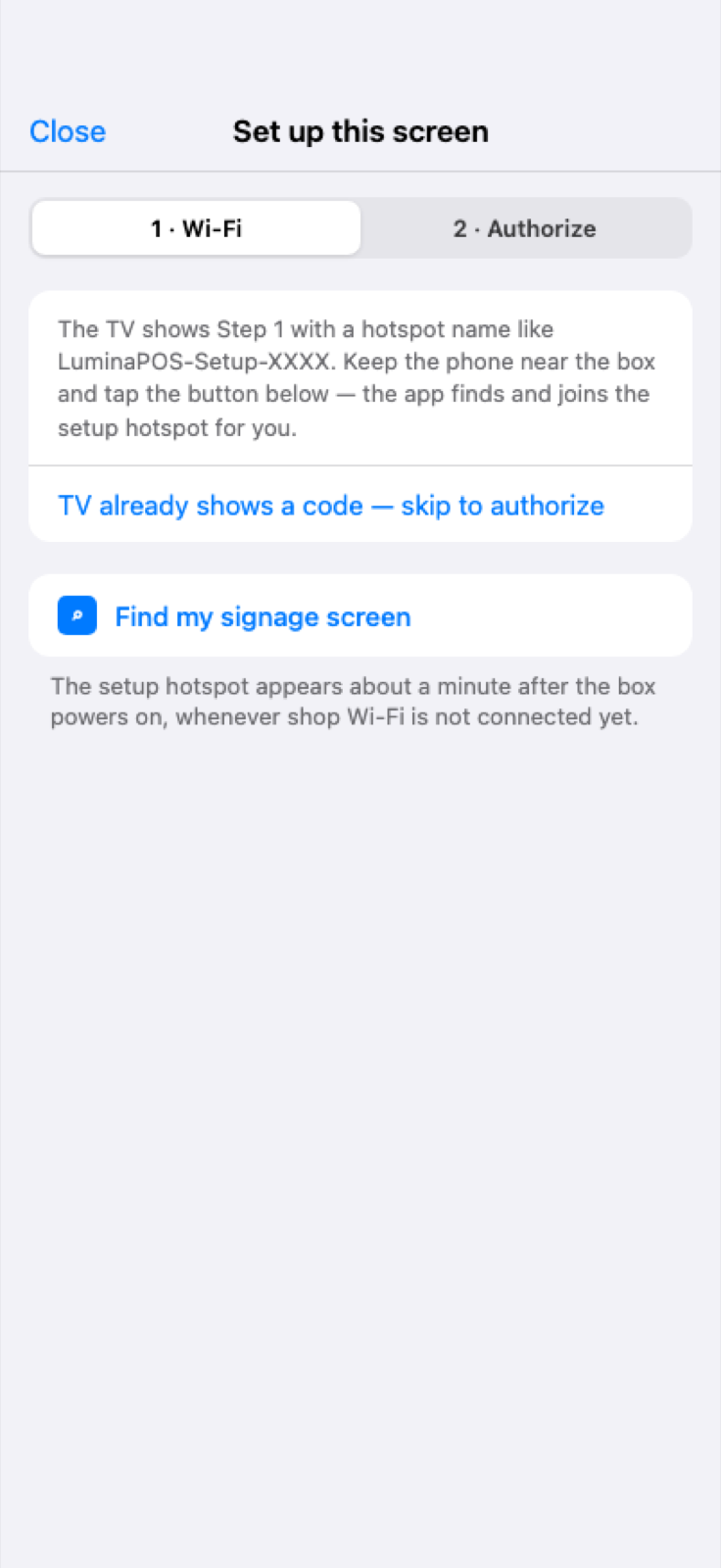
One product line, two ways in
Standalone kit.
Or part of the whole system.
Edit a service once — the lobby TV follows. Design boards in the browser or the app, assign screens, and run the day from the same place as tickets and payroll.
The system
Three moving parts.
You only touch the first.
Design a board, publish it, and the screens pick it up. Nothing on the wall ever needs a keyboard.
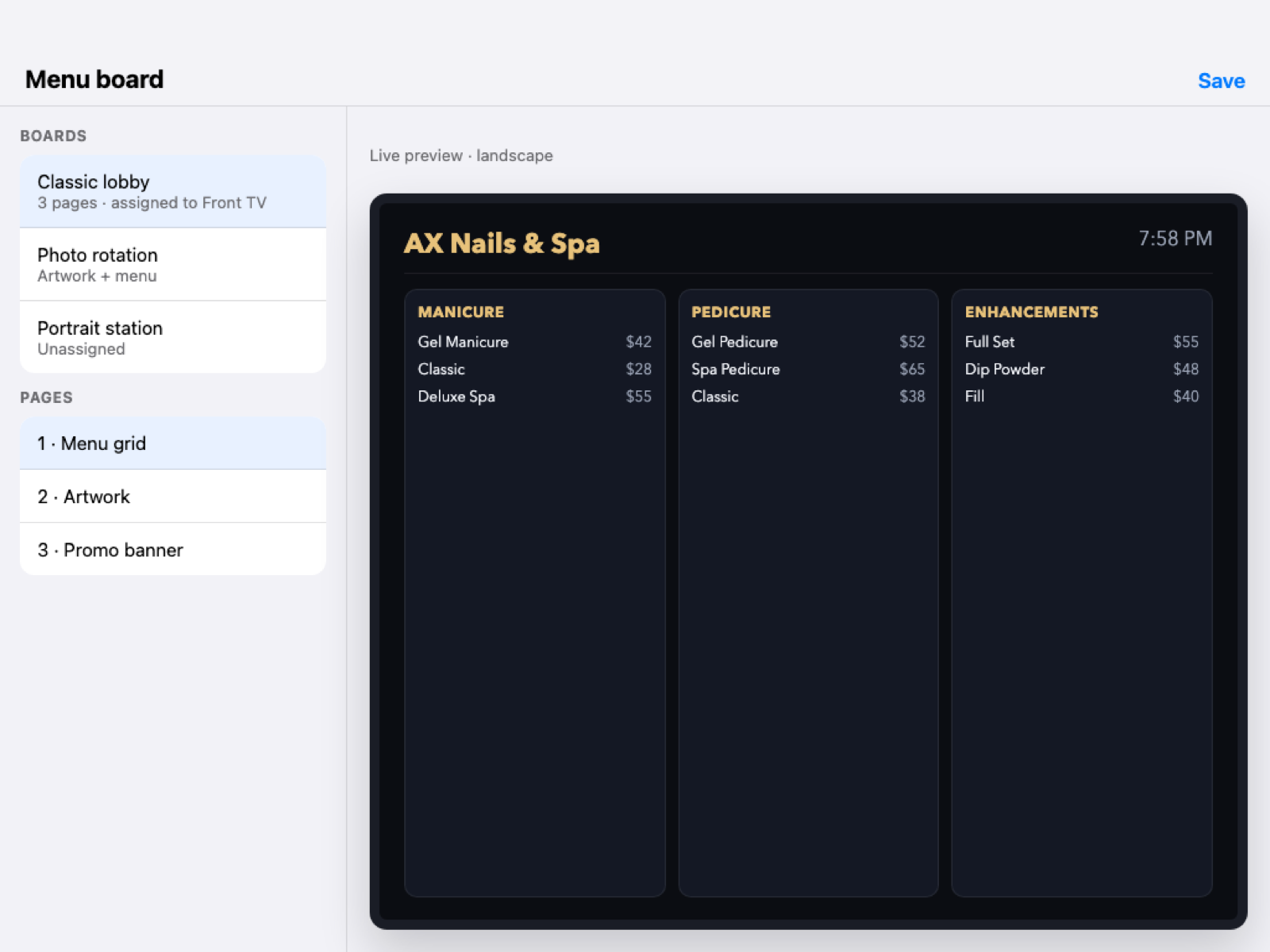
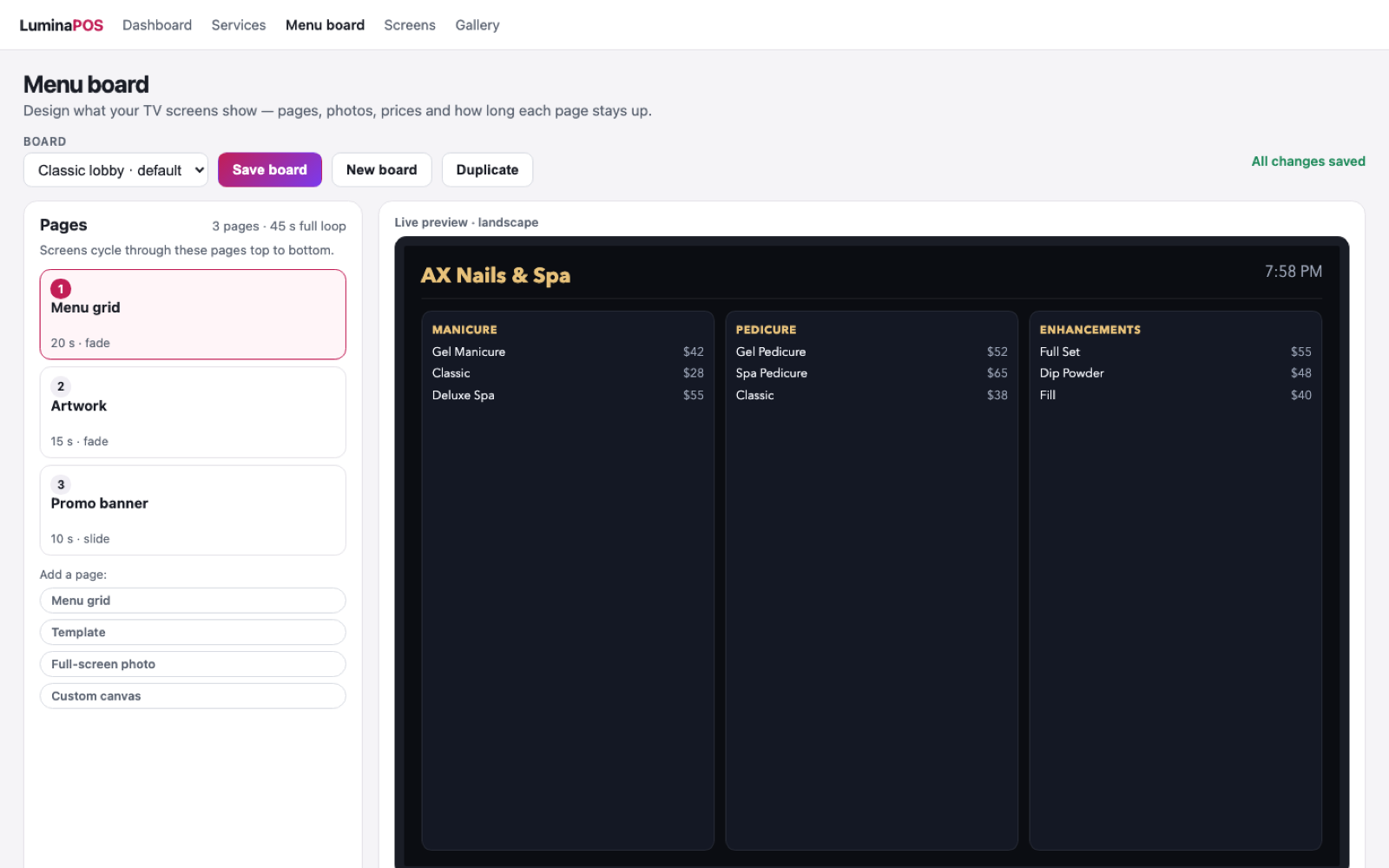
- Design Lay out boards on an iPad or in the browser — menu grids, artwork, promo pages — and preview every page before it goes out.
- Publish Assign a board to a screen and set when it shows. Prices can follow your LuminaPOS catalog, so one edit reaches every screen at once.
- Screens Each screen comes back on by itself after a power cut, and keeps showing the last good board if the internet drops.
What goes on screen
More than a price list.
Whatever the room needs.
A board is a set of pages that rotate. Mix them differently on every screen.
Design
Lay out the board
on iPad or the web.
Named boards with page rotation — menu grids, artwork, promo pages. Build one on an iPad or in the browser, give each screen its own look, and preview it before it reaches the lobby.
In the box
You buy a screen that works.
Not a project.
Everything arrives set up and labelled for your shop. Plug it into a TV, plug in power, and follow two steps on your phone.
- The player A small, silent box that lives behind the TV. No fan to fill with dust, no keyboard, no desktop — it boots straight to your menu.
- HDMI cable Cut to length for a wall mount, with the adapter your TV needs already in the box.
- Shop Wi-Fi radio A radio we have tested for months of continuous use, so setup does not depend on whatever chip the hardware shipped with.
- Its own label Each unit carries its own name and its own credentials, printed on the case. No two boxes share a login.
Wall mount and TV not included. Screens can be added one at a time — nothing about the first one has to change.
A day in the life
Change a price at the desk.
The wall catches up by itself.
There is no publish button and no trip to the TV. The screens ask for the menu on a loop all day, so an edit is on the wall in about half a minute.
- You edit once Change a price, rename a service, reorder the list, or hide something you have run out of — from the app or the web.
- The screen asks Every screen checks for a newer menu on its own, roughly twice a minute while you are open, and quietly slows down after hours.
- The wall changes The board redraws in place. Nobody watching it sees a browser, a loading bar, or a reboot.
And then it does it again, all day, without anyone touching the TV.
Setup
Two steps.
All from your iPhone.
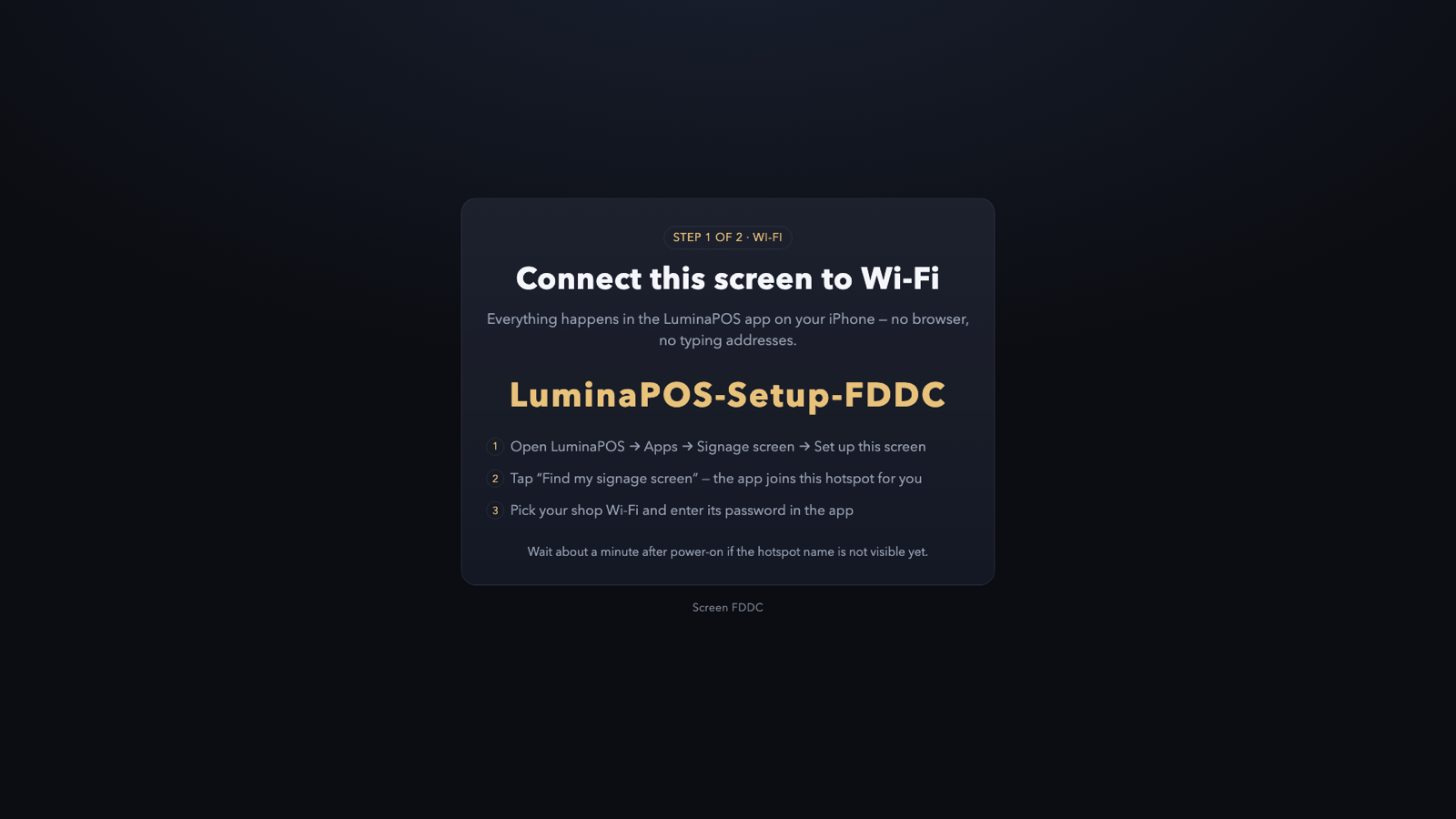
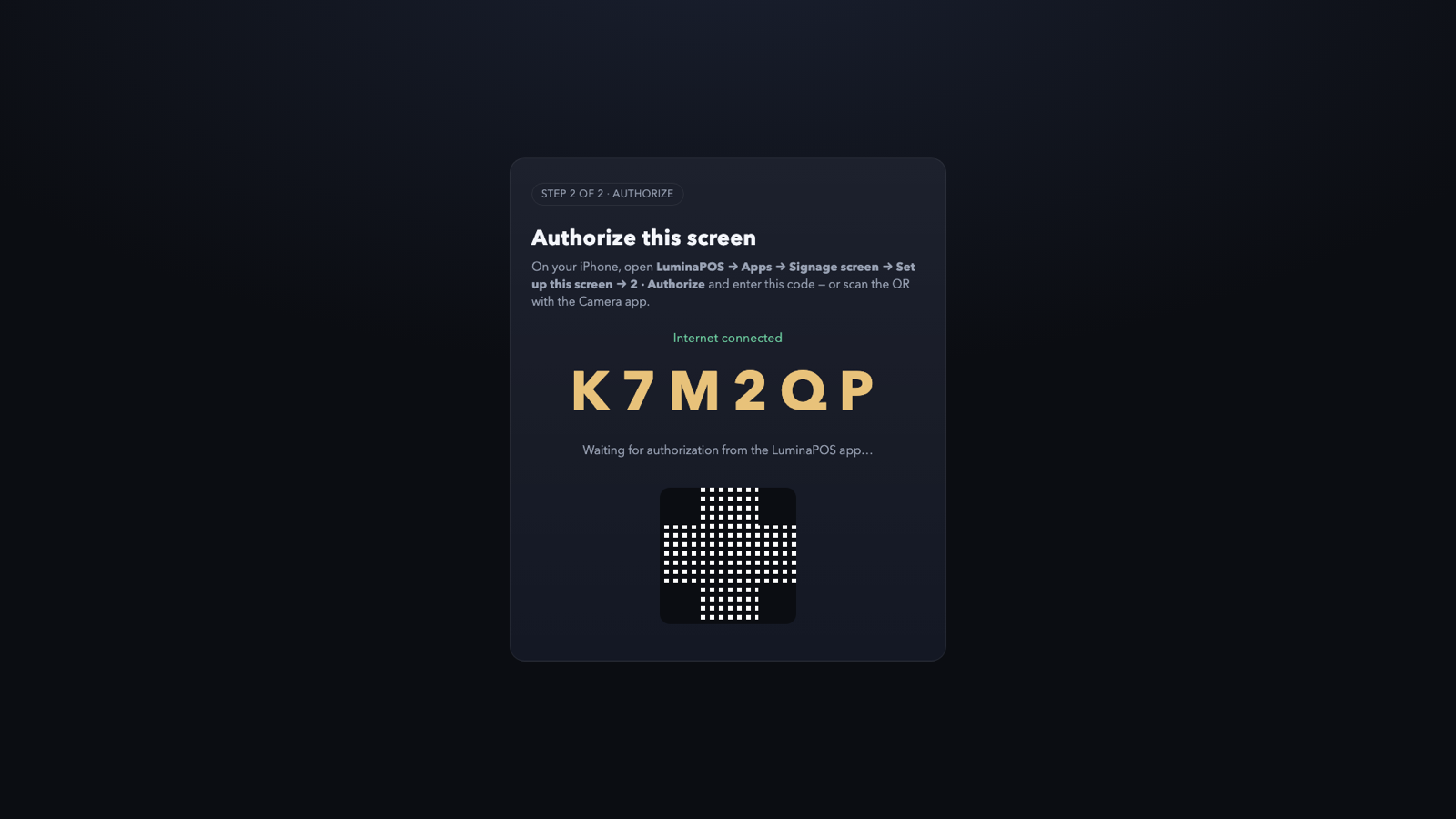
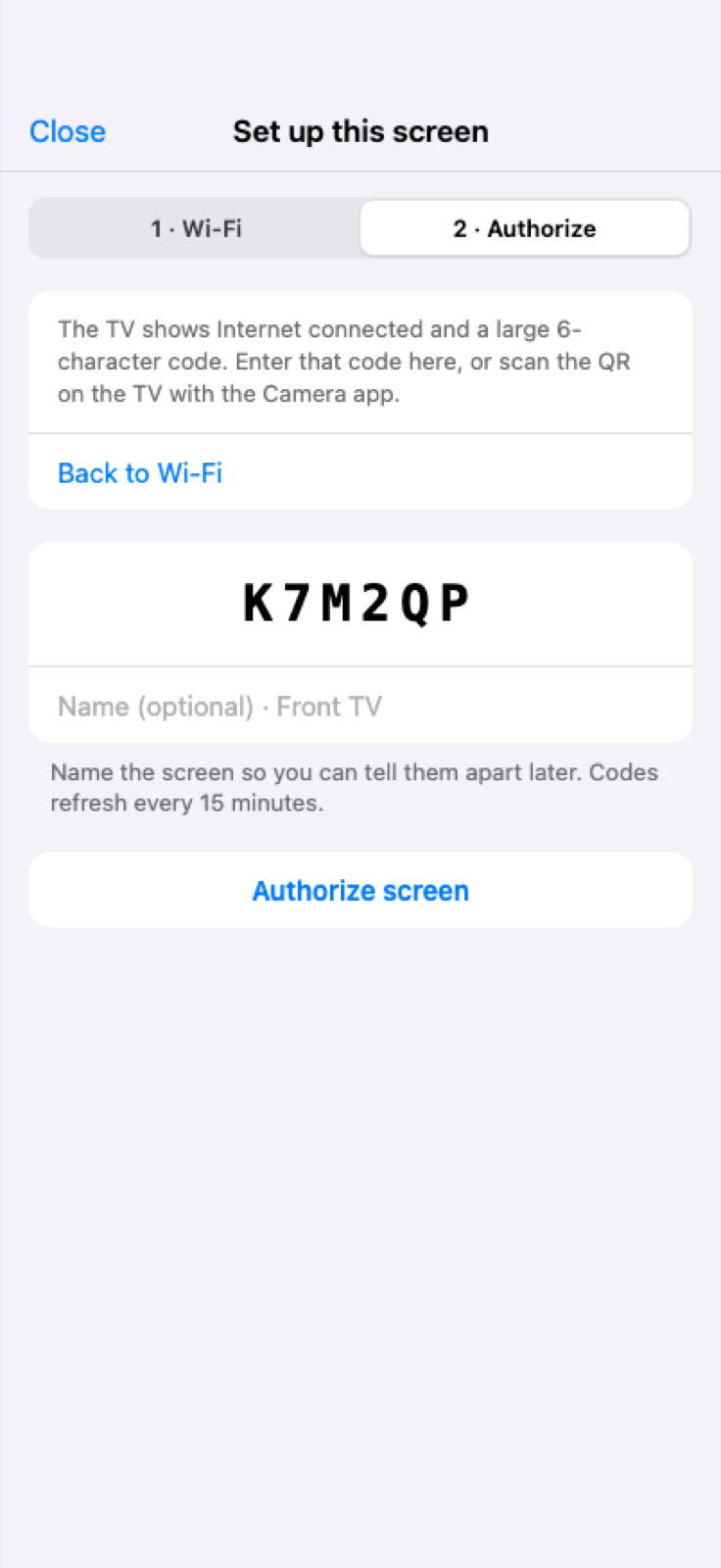
The TV never asks anyone to type an address. Your iPhone hands the screen the shop Wi‑Fi, then authorizes it with a short code.
Same books
Edit once.
The TV follows.
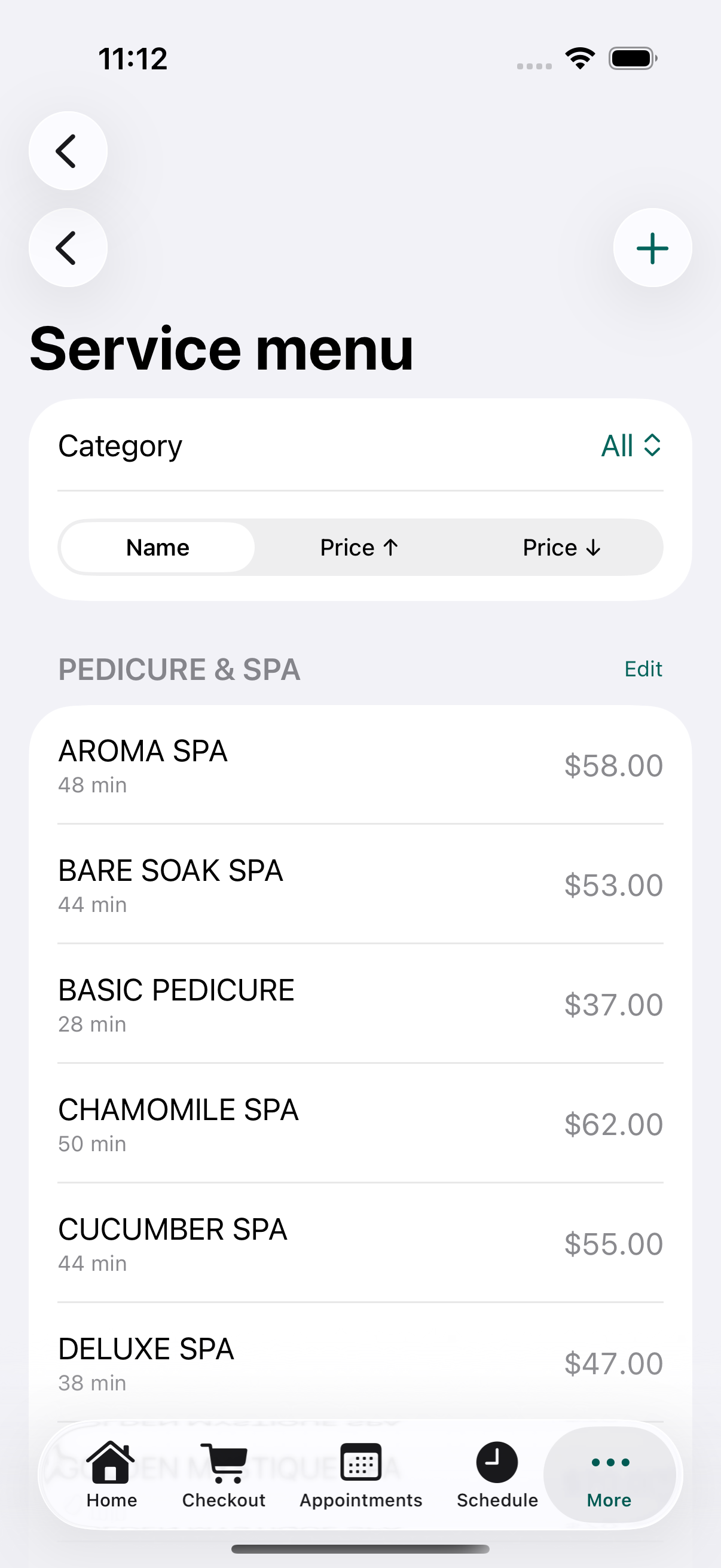
Service names and prices come from the LuminaPOS catalog. Change a gel manicure — the lobby board follows.
Built for the lobby
Quiet. Always on. Ready after a power blip.
Powers back on
After an outage the box boots straight to the board — last good menu while the network catches up.
Silent kiosk
Nothing but the board. No desktop, no stray taps — just what your guests should see.
Stays current
Screens update quietly in the background — no visit to the shop required.
Runs on a schedule
Boards can change by time of day, so mornings and evenings need nobody to touch them.
On your network
A screen on your wall
should not be a way in.
This is a box you are putting on your shop's network, so here is exactly what it does and does not do.
- It asks, nothing tells it The screen reaches out for its menu. Nothing on the internet can reach in and put something on your wall.
- One key per screen Each screen is authorised on its own and can be switched off on its own. Retiring one screen leaves the others untouched.
- No customer records The box knows your menu and nothing else. No names, no phone numbers, no card details, no booking history ever reach it.
- Checked before installed Updates arrive over an encrypted connection and are verified against a known fingerprint. Anything that does not match is thrown away and the screen keeps running what it has.
Before you ask
The questions we actually get
Can I use the TV I already have?
Yes. Any TV or monitor with an HDMI socket works — the player does the thinking, so the screen only has to display. It does not need to be a smart TV, and if it is, none of its apps or accounts are used.
Can I mount it portrait?
Yes. Turn the screen on its side and set the rotation from the app — the board redraws for the new shape rather than showing a sideways landscape menu. You can mix portrait and landscape screens in the same shop.
What happens if the internet drops?
The board keeps showing the last menu it received and quietly keeps trying. Customers see prices, not an error. If the outage runs long, staff see a small note with the time the prices were last confirmed.
What about a power cut?
It comes back on its own. The box boots straight to the board, and if the shop router is still starting up it waits and reconnects — nobody has to find a remote or a keyboard.
Do I need someone to install it?
No. Plug in HDMI and power, then follow two steps on your phone: join the shop Wi-Fi, then approve the code shown on the TV. Most shops are done before the first appointment.
Can different screens show different things?
Yes. Each screen can be given its own board — prices on the wall behind the desk, a photo gallery in the waiting area — and you can schedule a screen to change through the day.
Put your menu on the wall.
Designed and supported from Louisville, Kentucky.